
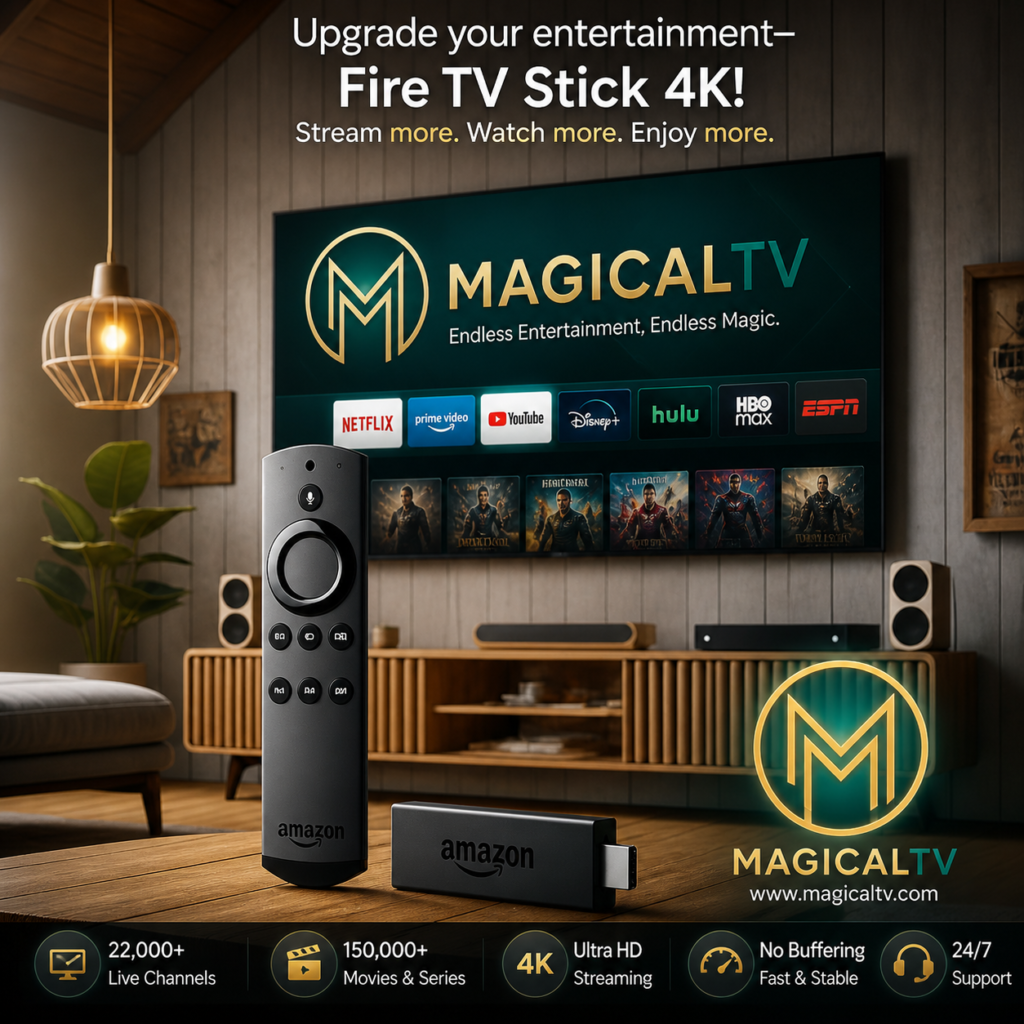
If you’re looking for the best way to cut the cord and access thousands of live channels, learning how to set up IPTV on Firestick is the ultimate first step. The Amazon Firestick remains the go-to streaming device for millions across the US and Canada, thanks to its powerful native Android environment and ease of use. This comprehensive guide provides a complete, step-by-step walkthrough…
Step 1: Prerequisites Before You Set Up IPTV on Firestick
Before diving into the installation process, ensure you have these four critical elements ready. Having them prepared will guarantee a smooth setup:
A Ready Firestick Device:
Ensure your device is plugged in, connected to your Wi-Fi, and updated to the latest OS version.
A Stable Internet Connection:
IPTV streaming, especially for high-definition sports and 4K content, requires a minimum dedicated speed of 25 Mbps or higher.
Your MagicalTV Subscription Details:
This includes your unique M3U Link or Xtream Codes login credentials (Username and Password). You cannot proceed without this key information.
A VPN (Virtual Private Network):
Crucial for US Users. While IPTV itself is generally legal, streaming large volumes of content can sometimes raise privacy concerns. A VPN hides your IP address, protecting your data and preventing potential bandwidth throttling from your Internet Service Provider (ISP).
Step 2: Enabling Unknown Sources
To install any dedicated IPTV player or third-party app that isn’t directly available on the Amazon App Store (which is essential for the best IPTV experience), you must first grant the Firestick permission to install applications from external sources. This process is commonly referred to as ‘sideloading.’
Follow these exact steps to prepare your device:
- Go to Settings: From your Fire TV home screen, navigate all the way to the right until you locate the Settings menu (the gear icon).
- Select My Fire TV
- Open Developer Options (if you don’t see it, click “About” 7 times)
- Turn ON Apps from Unknown Sources
- Confirm by selecting Turn On
Step 3: The Primary Method – Using the Downloader App
Since the most capable IPTV players are often not listed directly on the Amazon App Store (due to restrictive policies), we need a special tool to ‘sideload’ them onto your Firestick. The Downloader app is the most popular, safest, and simplest method for US and Canadian users.
A. Installing the Downloader App
- Go to Home Screen → Search
- Type Downloader
- Download and install it
- Open the app
B. Installing Your IPTV Player (We Recommend IPTV Smarters)
The IPTV Smarters Pro app is widely recognized as the most user-friendly and feature-rich player for managing large channel lists, making it the ideal choice for MagicalTV’s extensive library.
- Open Downloader
- Enter the APK URL provided by the IPTV app
- Click Go
- Install the app
- Click Done
- Delete the APK file to save storage
Step 4: Activating Your IPTV Service with MagicalTV (M3U or Xtream Codes)
Now that your IPTV Player (such as Smarters Pro) is installed, the final step is to authenticate your service using the credentials provided to you by MagicalTV.
Method A: Using Xtream Codes API (Recommended for Stability)
The Xtream Codes API is the most reliable way to connect, as it syncs all your channel lists and EPG data instantly.
- Open your IPTV player
- Select Login with Xtream Codes API
- Enter:
- Any Name (e.g., MagicalTV)
- Username
- Password
- Server URL
- Click Login
Method B: Using the M3U Link
- Select Login with URL
- Paste your M3U link
- Load channels
Troubleshooting: Quick Fixes for Common Firestick IPTV Issues
Buffering and Lagging Fixes
- Check your internet speed (25+ Mbps recommended)
- Clear cache:
Settings → Applications → Manage Installed Applications → IPTV App → Clear Cache - Use a VPN if your ISP is throttling
Channels Not Loading / EPG Errors
- Double-check your Username and Password
- Restart your Firestick (unplug for 60 seconds)
Why MagicalTV is Your Best IPTV Choice for Firestick
Now that you’re successfully set up, it’s time to enjoy the difference a premium service makes. At MagicalTV, we specifically cater to the needs of the US and Canadian streaming market:
- 22,000+ Live Channels
- 150,000+ Movies & Series (VOD)
- Stable Servers (No Buffering)
- 24/7 Customer Support
Final Thoughts: Enjoy Your Favorite Channels!
Congratulations! You have successfully transformed your Amazon Firestick into a powerful streaming device. You’re now ready to enjoy unlimited entertainment with MagicalTV.
👉 Start your free 24-hour trial today and experience smooth, high-quality IPTV streaming!