
How to Install IPTV Smarters on Firestick (Step-by-Step Guide)
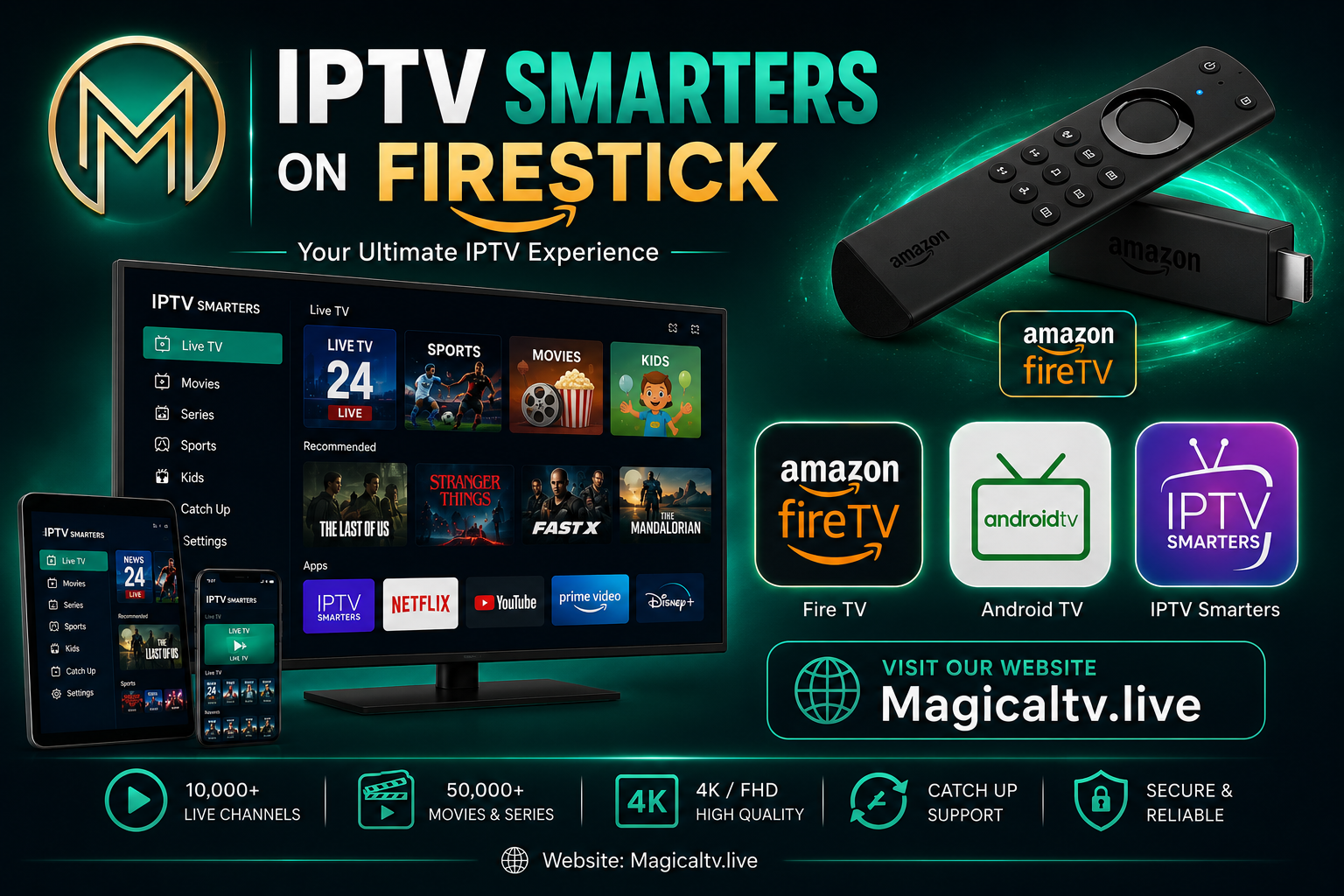
IPTV Smarters Firestick setup is one of the easiest ways to stream live TV, movies, sports, and entertainment on your Amazon Fire TV device. One of the most popular apps for IPTV streaming is IPTV Smarters Pro. In this guide, you’ll learn how to install IPTV Smarters on Firestick step by step and configure it correctly for smooth streaming in 2026.
Whether you are new to Firestick or already using streaming apps, this tutorial from MagicalTV will help you complete the setup in just a few minutes.
What Is IPTV Smarters?
IPTV Smarters Pro is a popular IPTV Smarters Firestick player designed for streaming live TV channels, movies, TV series, and catch-up content. The app itself does not provide channels but allows users to log in using IPTV credentials from their provider.
The app works on many devices including:
- Amazon Firestick
- Fire TV
- Android TV IPTV Smarters Firestick
- Smartphones
- Tablets
- Windows PCs
Because of its clean interface and easy navigation, IPTV Smarters has become one of the top Fire TV IPTV Smarters Firestick apps used by streamers worldwide. IPTV Smarters Firestick
Why Use IPTV Smarters on Firestick?
There are several reasons why Firestick users prefer IPTV Smarters Firestick :
- Fast and simple interface
- Supports live TV and VOD
- Easy playlist integration
- Compatible with multiple IPTV Smarters Firestick formats
- Works smoothly on Amazon Fire TV devices
- Supports HD and 4K streaming
Many users of MagicalTV also prefer IPTV Smarters because it offers a beginner-friendly streaming setup experience.
Before You Start
Before you install IPTV on Firestick, make sure you have:
- A stable internet connection
- An Amazon Firestick or Fire TV device
- IPTV subscription details from your provider
- Enough storage space on your Firestick
Since IPTV Smarters is not always available directly in the Amazon App Store, you will need to enable apps from unknown sources first.
Step 1: Enable Unknown Apps on Firestick
To install third-party apps on Fire TV devices, follow these steps:
- Open Settings on your Firestick
- Select My Fire TV
- Click Developer Options
- Enable:
- Apps from Unknown Sources
- ADB Debugging
If you don’t see Developer Options:
- Open About
- Click your Fire TV device name 7 times
- Developer Options will appear
This step is required before you can install IPTV on Firestick manually.
Step 2: Install the Downloader App
The easiest method to install IPTV Smarters Firestick is by using the Downloader app.
Steps:
- Open the Amazon App Store
- Search for Downloader
- Install the app
- Launch Downloader
- Allow permissions if requested
Downloader lets you download APK files directly onto your Fire TV device.
Step 3: Download IPTV Smarters APK
Now you can install the IPTV app.
Follow these steps:
- Open Downloader
- In the URL box, enter the official IPTV Smarters APK download link
- Click Go
- Wait for the APK file to download
- Select Install
After installation finishes:
- Click Done
- Delete the APK file to save storage space
You have now completed the IPTV Smarters Firestick installation process.
Step 4: Open IPTV Smarters
Once installed:
- Return to the Firestick home screen
- Open Your Apps & Channels
- Launch IPTV Smarters
When the app opens for the first time, accept the terms and conditions.
Step 5: Add IPTV Subscription Details
To start streaming, you must add your IPTV account information.
Most IPTV providers will give you one of these login methods:
- Xtream Codes API
- M3U Playlist URL
- Local Playlist File
The easiest option is usually Xtream Codes.
Enter:
- Username
- Password
- Server URL
After logging in, the app will load:
- Live TV channels
- Movies
- Series
- TV guide
Users of MagicalTV can easily connect their IPTV subscription using this method.
Best Settings for IPTV Smarters on Firestick
To improve streaming performance, try these settings:
Use a Fast Internet Connection
For HD streaming:
- Minimum 20 Mbps recommended
For 4K streaming:
- 50 Mbps or higher recommended
Clear Cache Regularly
To keep your Firestick fast:
- Go to Settings
- Applications
- Manage Installed Applications
- IPTV Smarters
- Clear Cache
Keep Firestick Storage Free

Avoid installing too many apps at once. Low storage can cause buffering and lag.
Use Ethernet Adapter (Optional)
If your Wi-Fi signal is weak, using an Ethernet adapter can improve stability.
Common IPTV Smarters Problems and Fixes
Buffering Issues
Possible causes:
- Slow internet
- IPTV server overload
- Weak Wi-Fi signal
Fixes:
- Restart router
- Reduce video quality
- Clear app cache
Login Errors
Double-check:
- Username
- Password
- Server URL
Even a small typo can prevent login.
App Crashing
Try:
- Restarting Firestick
- Reinstalling the app
- Updating the Fire TV system
Is IPTV Smarters Safe to Use?
IPTV Smarters Pro itself is simply a media player application. Safety depends on the IPTV service provider you choose and the content being streamed.
Always use trusted streaming sources and keep your Firestick updated for the best experience.
Final Thoughts
Installing IPTV Smarters on Firestick is a simple process that only takes a few minutes. Once configured correctly, the app provides an excellent streaming experience for live TV, sports, movies, and entertainment.
If you are looking for a smooth Fire TV IPTV app setup, IPTV Smarters remains one of the best options available in 2026.
At MagicalTV, many users choose IPTV Smarters because of its speed, user-friendly design, and compatibility with Amazon Fire TV devices.
By following this step-by-step guide, you can quickly install IPTV on Firestick and start streaming your favorite content without hassle.